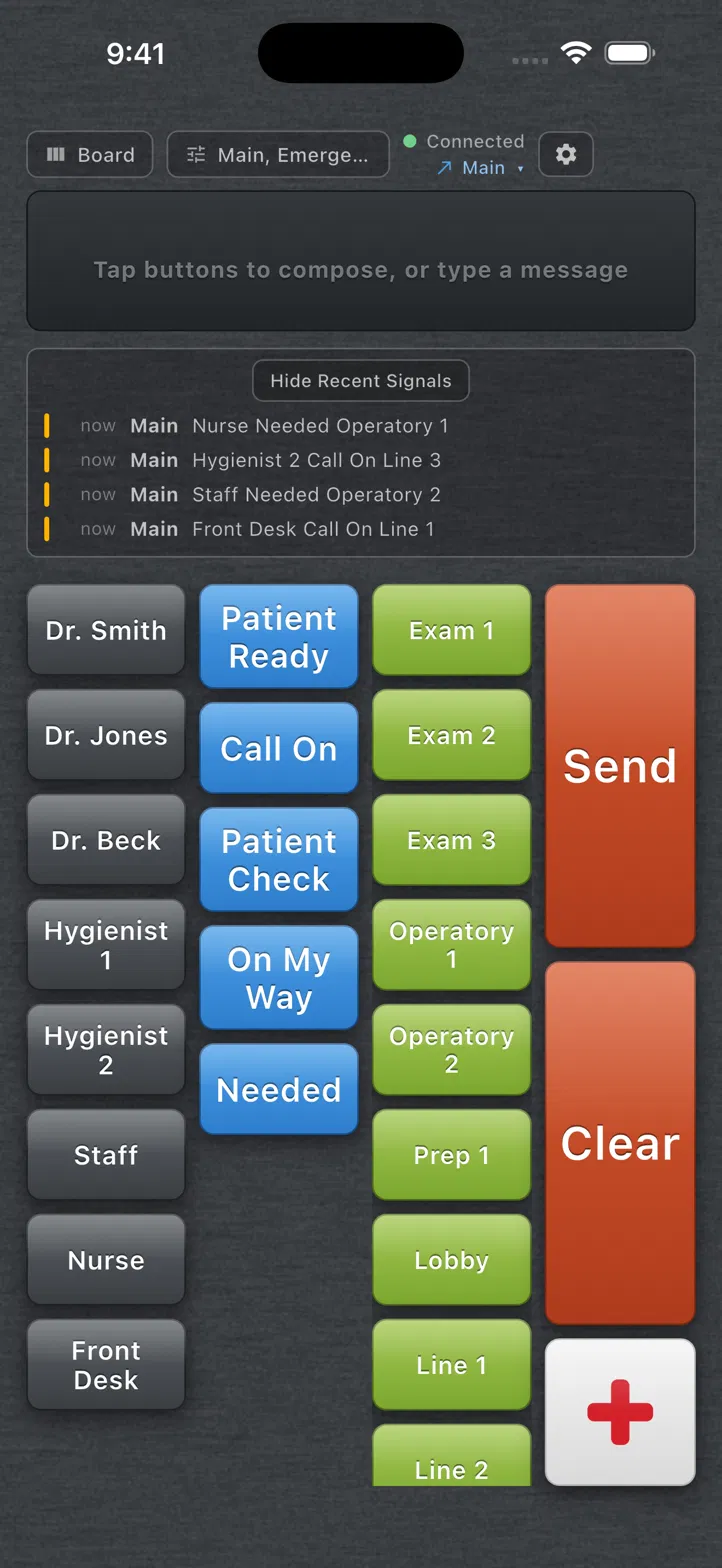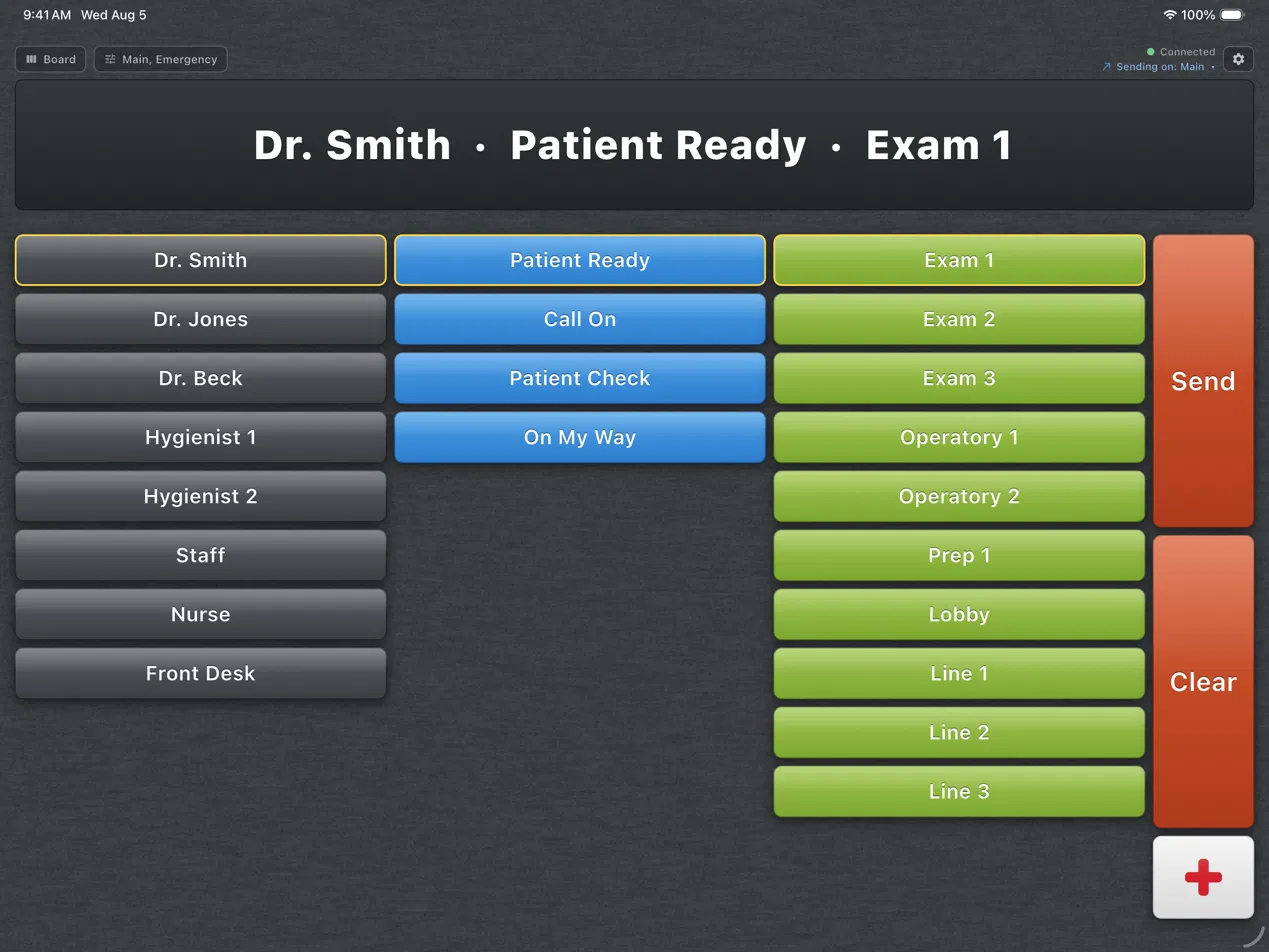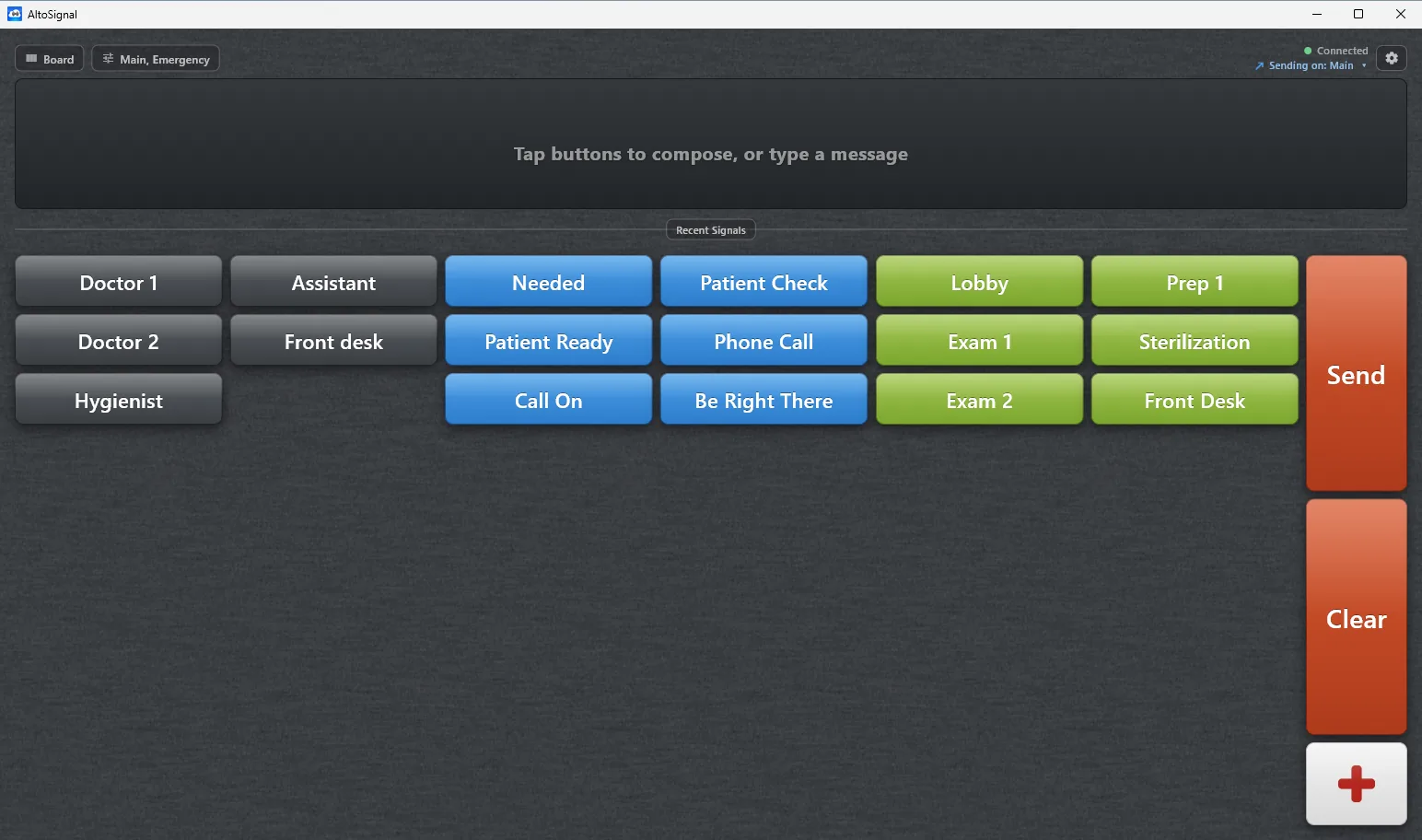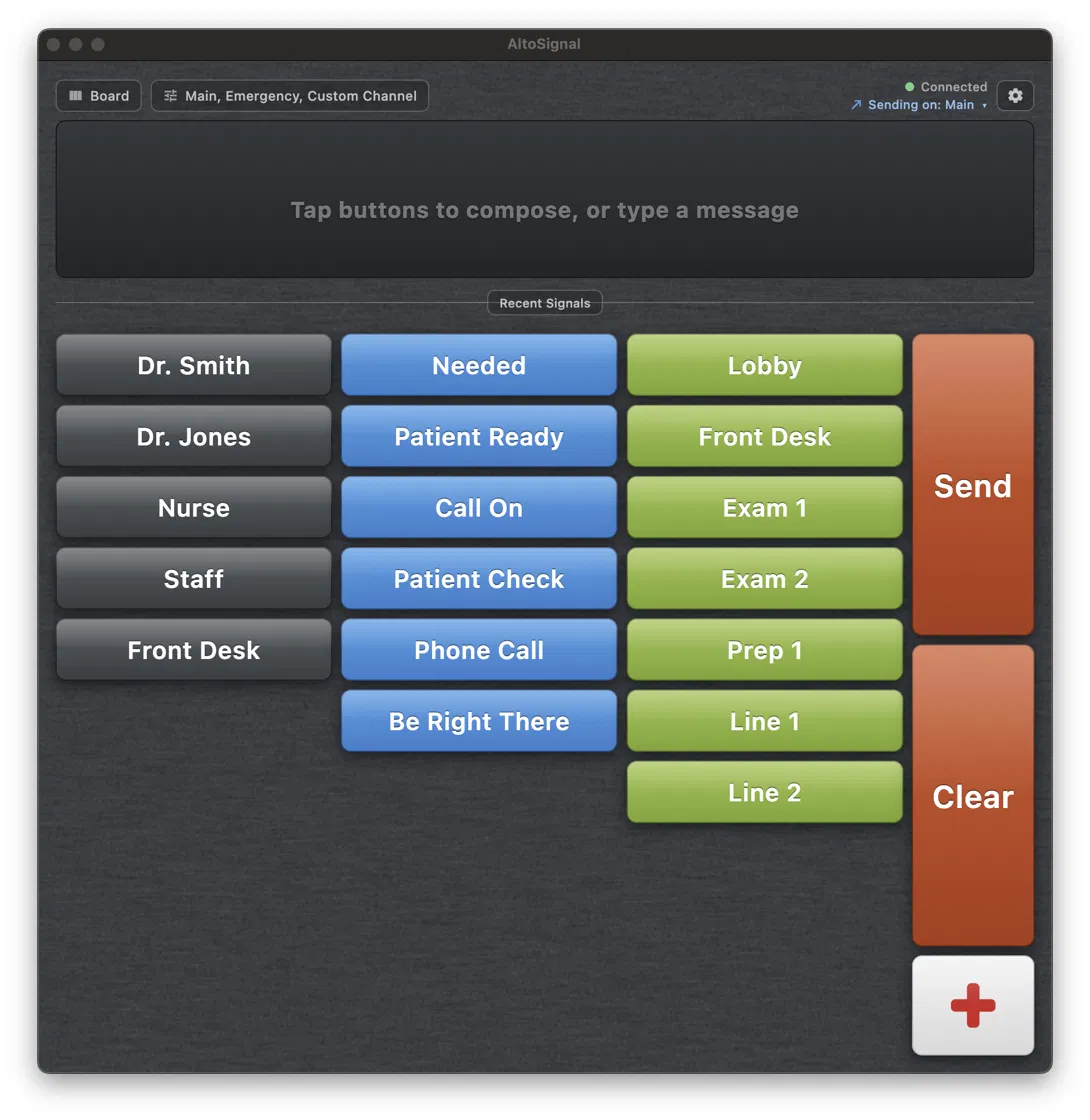
●Silent paging, room to room · since 2013

Tap a button.
Your whole team
sees it.

AltoSignal is a silent paging system for dental offices, medical and eye care practices, and spas. It runs as an app on the phones, tablets and computers you already own, so your team can coordinate without shouting across the office or interrupting patients.

Start 30-day free trialRequest a demoNo credit card · 10-min setup
New in 4.3Set up in a sentence, and see how the day went
Who uses AltoSignal

One app for every office that moves people between rooms.

  • Dental offices
    Operatories, hygiene and sterilization, with a numbing timer and the doctor’s next op.
    See dental →
  • Medical & ENT
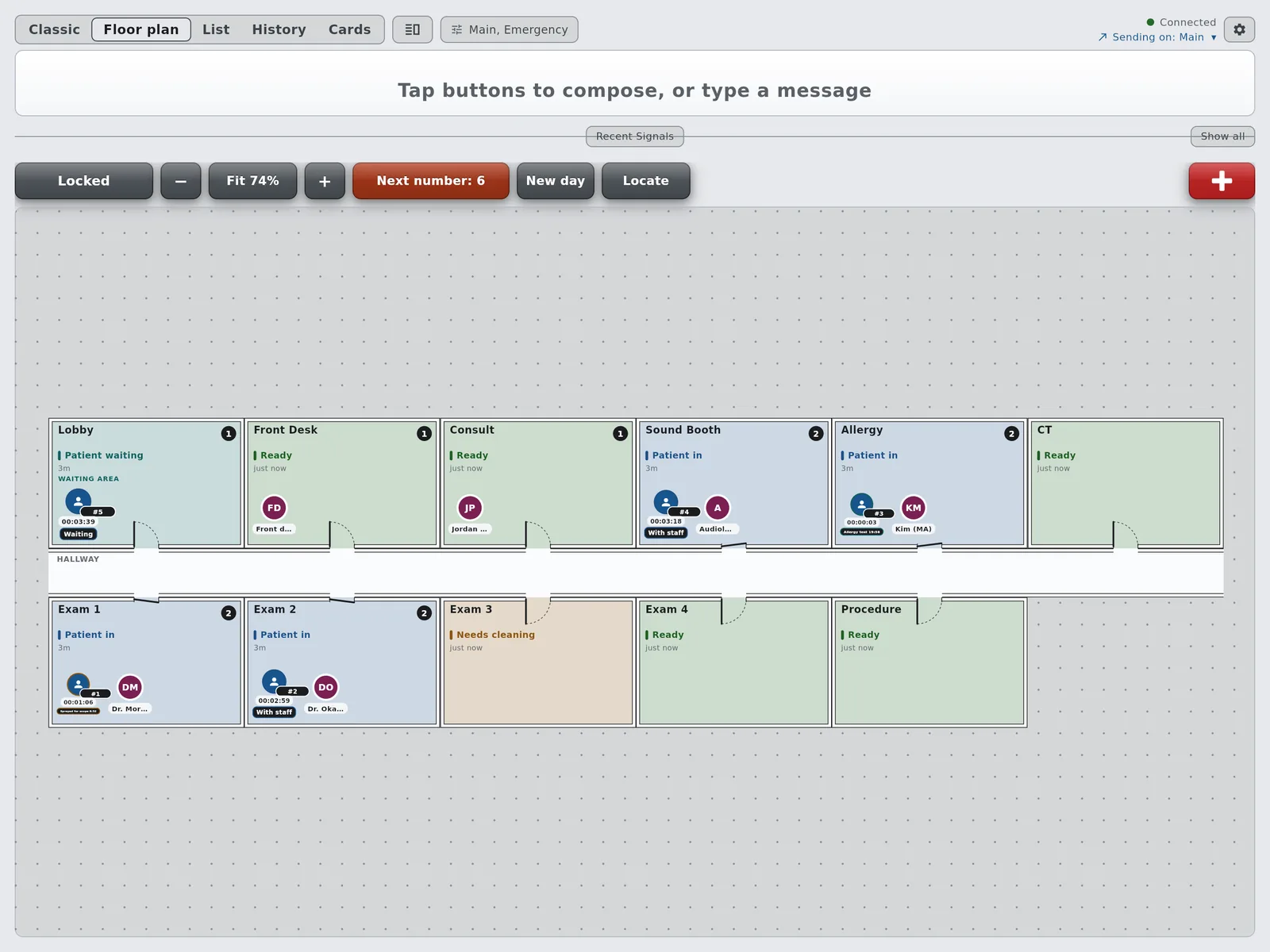
    Exam rooms, the procedure room and the sound booth, with timers for the scope spray and the allergy test.
    See medical →
  • Eye care
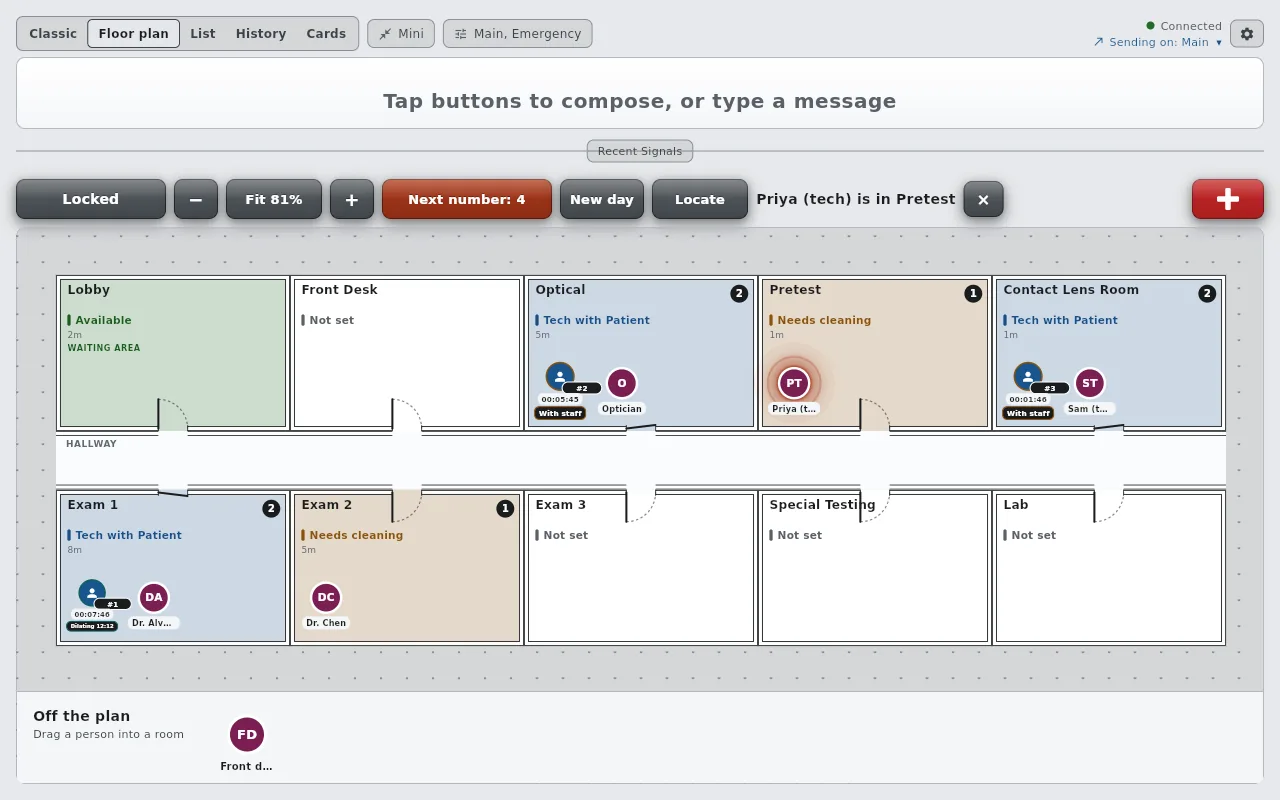
    Pretest to the exam lane to optical, with a dilation timer every screen can see.
    See eye care →
  • Veterinary clinics
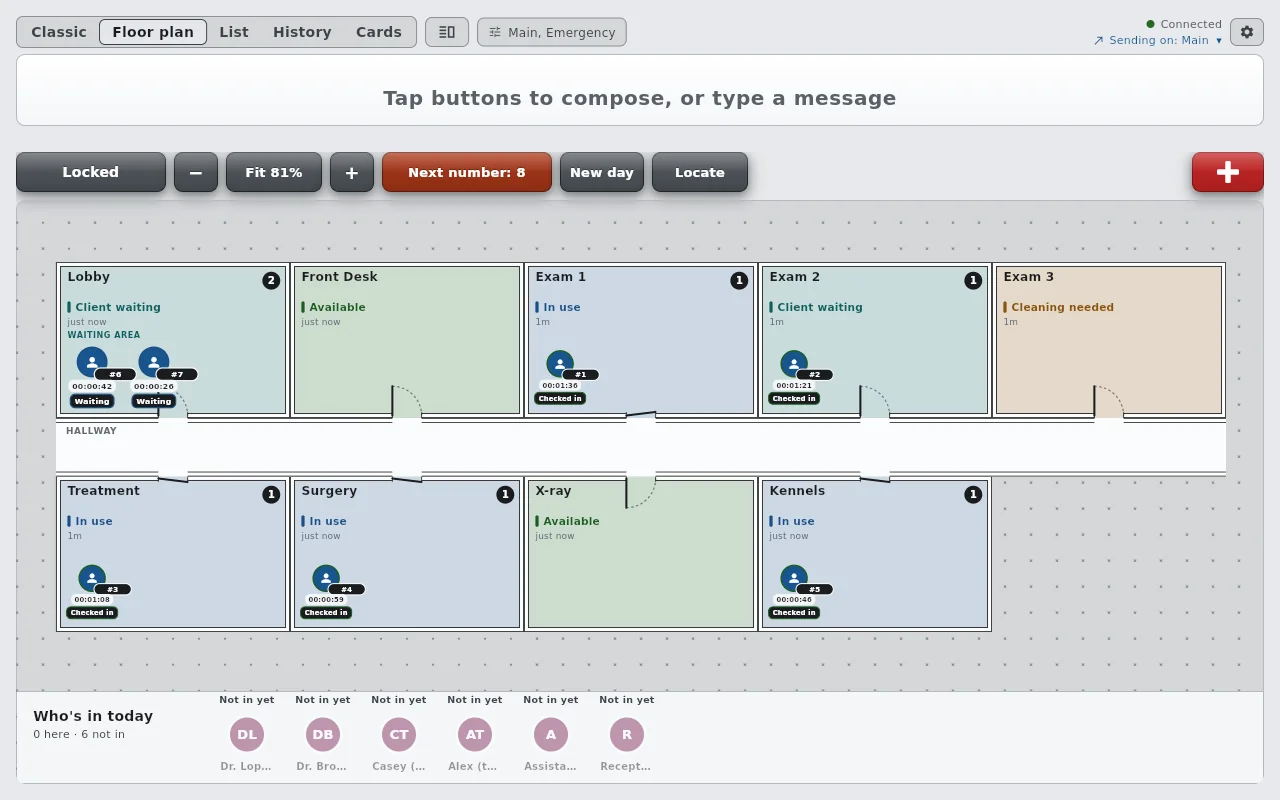
    Exam rooms, treatment, surgery, X-ray and kennels, with restraint calls and room states the whole team sees.
    Visit the vet site ↗
  • Spas & salons
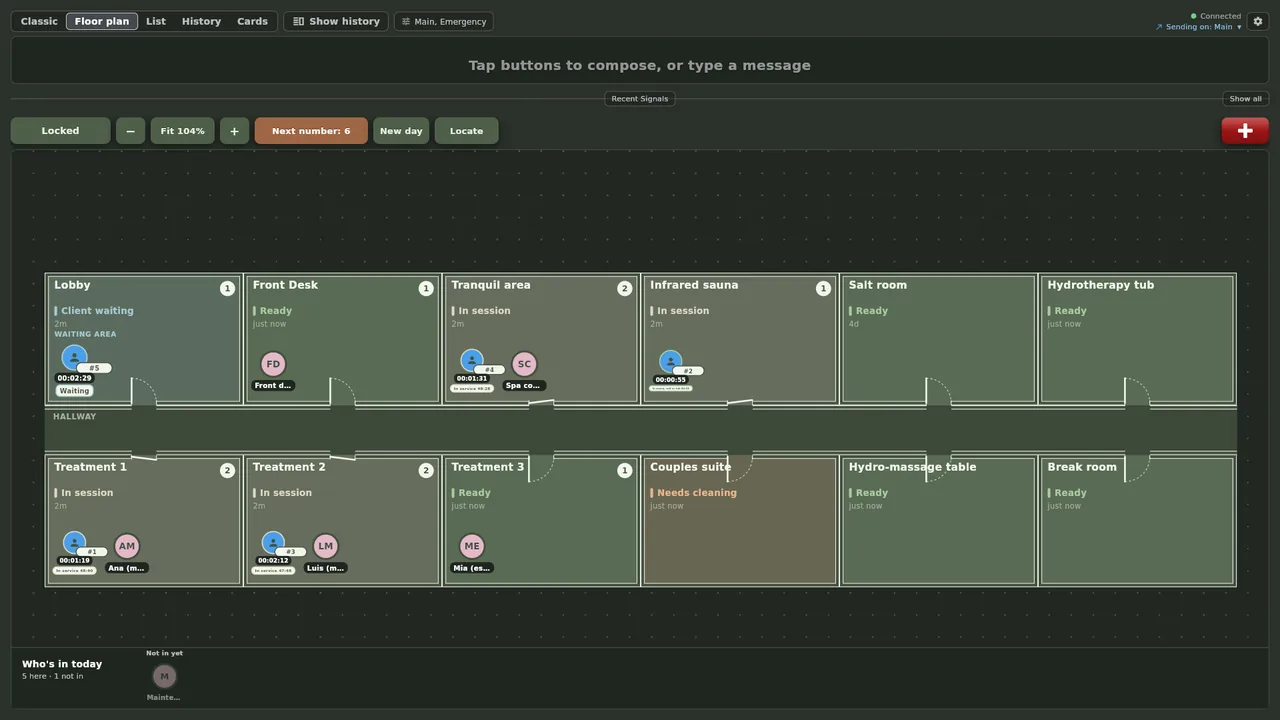
    Treatment rooms, the tranquil area and the sauna, with soft tones and a calm Spa theme.
    Visit the spa site ↗

Ready-made buttons for dental offices, eye care, ENT and veterinary practices, day spas, med spas, salons and more. Rename anything to fit your office.

The full tour, 14 steps →

Your office, live,
on every screen.

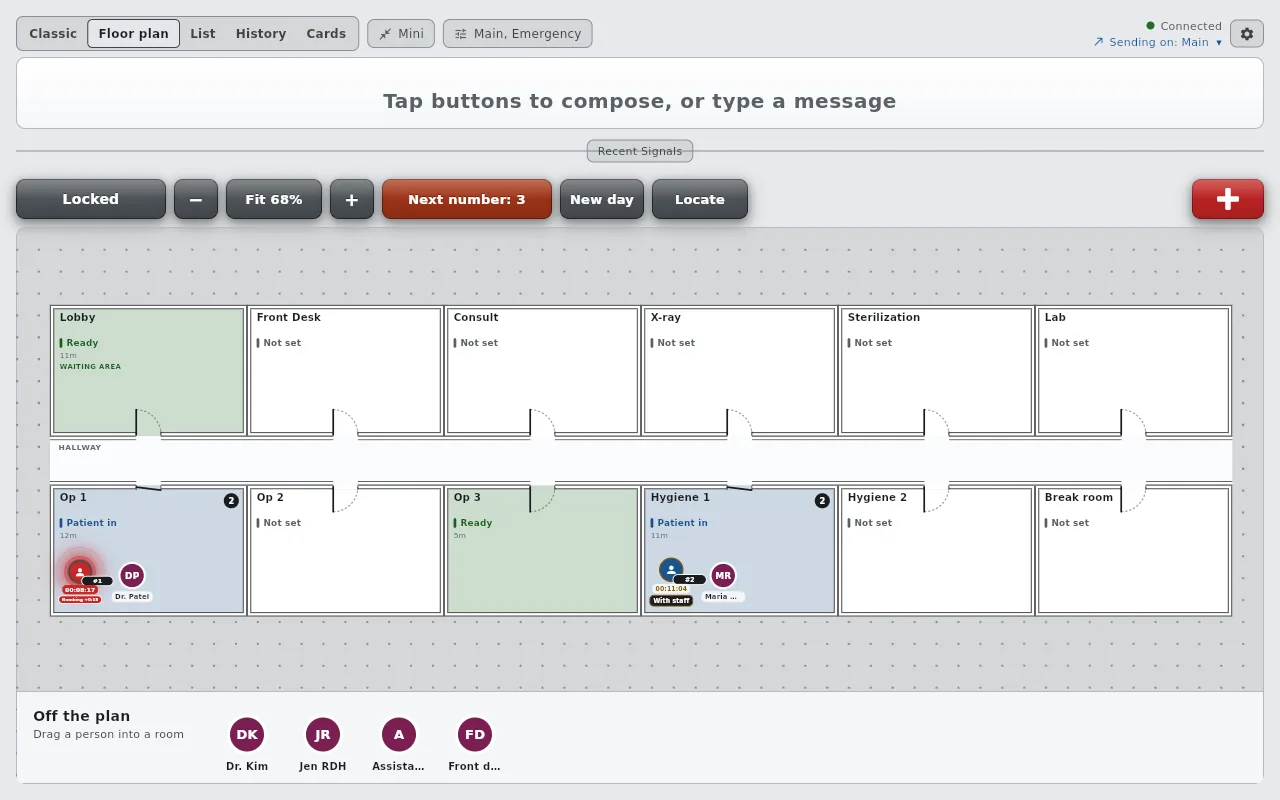
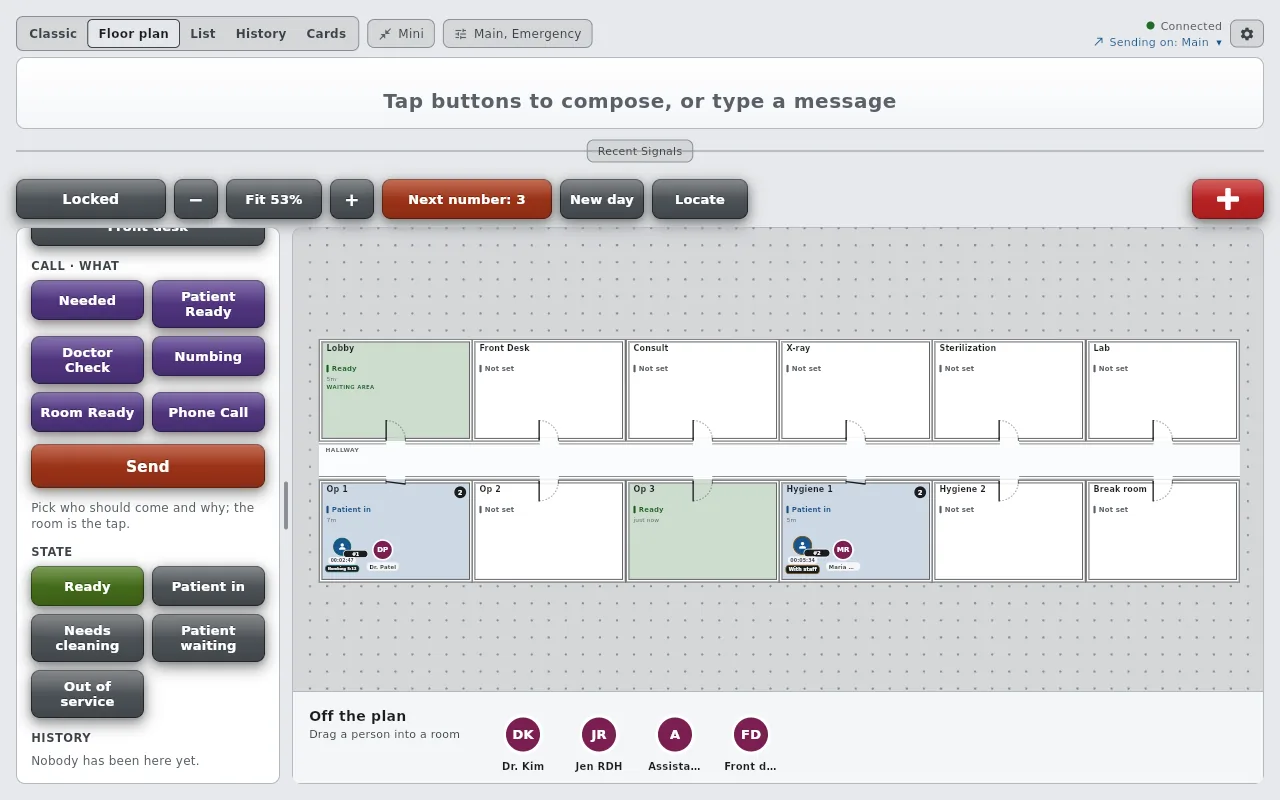
Version 4.0 draws your operatories as a floor plan and puts every patient and every staff member in them. Take a number at the front desk, drag the patient into Op 1, watch their clock and their state, and read the whole visit back afterwards. The board you already use is one tap away, on the same screen.

AltoSignal's Floor plan view on the desktop app: a dental office drawn wall to wall around a hallway. Patient 1 in Op 1 glows red because the Numbing timer has run out; Dr. Patel is beside them and Maria RDH is in Hygiene 1 with patient 2.
Front desk, desktop app. The red glow in Op 1 is the anesthetic timer that just ran out. A real capture, not a mockup.
The hygiene hand-off
Hygiene 1 sends Doctor Check. The desk answers Be There Soon, and one tap on the tablet acknowledges it everywhere.
A timer runs out
Numbing counts down eight minutes. At zero the patient turns red on the plan and on the list, on every screen.
Find anyone
Locate, Dr. Patel: the icon glows on the plan and the bar says Op 1, on the desk and on the tablet.

Each clip: the desktop app at the front desk on the left, the Op 1 tablet on the right, real time.

  • 01
    Your rooms as a plan
    Auto layout draws your Where buttons wall to wall around a hallway. Floor design makes it yours.
  • 02
    Take a number
    A patient is a number and a clock, never a name. Drag them into an operatory and every screen follows.
  • 03
    States with timers
    Numbing, X-ray, Ready for doctor: your words, and a countdown that turns red when it runs out.
  • 04
    The whole visit, read back
    Every room a patient was in, with times, and every state change, on the patient and on the room.
See the full 4.0 tour →Six short clips on the guides page

Run an eye care practice? See it from pretest to optical, with the dilation timer, clip by clip. Run an ENT or medical practice? See it from the front desk to the sound booth, with timers for the scope spray and the allergy test.

New in 4.3

Set up in a sentence. See how the day went.

  • Set up in a sentence
    Describe your office in your own words, or answer three questions, and get your buttons, rooms, room states and a floor plan to approve before anything is saved.
  • Your floor plan from a photo
    Take a picture of your fire escape plan or a sketch. The rooms are drawn for you, matched to your own, and you choose to keep your rooms, add the new ones or replace them.
  • Activity at a glance
    Owners and admins see pages per day, how fast they are answered by hour, the busiest rooms and people, and a short weekly summary, in the app and on the account page.
  • A simpler Setup
    Four tabs instead of one long screen, a box at the top that answers how to do something from our guides, and a simple mode that keeps a new screen to buttons and room cards.

The setup guide, step by step. Owners find the Activity on their account page and on the app's Account screen.

New in 4.2.1

Room cards you can run the day from.

  • Room cards that do the work
    Tap a room card to add the next patient, move one to another room, rename them, set their status or take them off the board. Remove all clears the room in one tap.
  • Timers on rooms
    Tap a card and pick a length, or any minutes and seconds. The card fills as the time runs down and glows red when it runs over. Choose your own list of lengths in Setup.
  • The waiting room empties itself
    When the front desk sends Patient Ready for the Lobby and the nurse answers On My Way, the patient who has waited longest leaves the board, with Undo for a few seconds.
  • Medical office buttons
    A ready-made setup for primary care: Triage, six exam rooms, Lab and Checkout, with timers for vaccine watch, a rapid test and a nebulizer.

From a primary care group that runs its day from the room cards and wanted the Lobby to keep up on its own. Patient flow, start to finish.

New in 4.2

The floor plan keeps itself up to date.

  • The plan follows the pages
    Page “Dr. Patel, Patient Ready, Op 3” and when Dr. Patel answers On My Way, the floor plan moves Dr. Patel into Op 3 on every screen. Nobody drags anyone.
  • Typed counts too
    A typed page that names one person and one room moves them the same way, and so does a typed “omw” right after a page arrives.
  • Replies in your words
    Write a reply your own way and AltoSignal understands whether it means on my way. Setup marks the replies that move people; untick any you want to stay put.
  • Last seen, not guessed
    Someone nothing has placed for an hour fades on the plan, and Locate says “last seen in Op 3”, so the plan never pretends to know where they are.

From a busy dental office that told us nobody has time to keep moving doctors on a screen. Also new: a ready-made ENT practice setup, a complete sample office in one press to try before you build your own, and lists that fit a phone. Live on every platform; here is how to update a screen that has not.

New in 4.1

Who's in today, and the history beside you.

  • Who's in today
    Mark each person In, Lunch, Out today or Away until a date, with reasons you choose. Every screen hears “Dr. Patel is in” on arrival, and anyone who steps out leaves their room on the plan. A presence board, not a time clock.
  • History beside any view
    Show history opens every message in a side pane next to the plan, the list or the board, on a computer or a larger tablet turned sideways. Drag it wider and reply from it.
  • Tell them
    Drag a doctor into Op 3 and, for a few seconds, a bar offers to tell them. One tap calls them to that room with their own tone. Ignore it and the move stays silent.
  • The whole office in one tap
    Starter buttons now set up the buttons, the floor plan and the theme together, with no limit on rooms. Views swipe and switch instantly, and each person’s tone plays on every screen.

Live on every platform. Most screens update themselves; here is how to update one that has not.

Tap a name, a need,
and a room. Then Send.

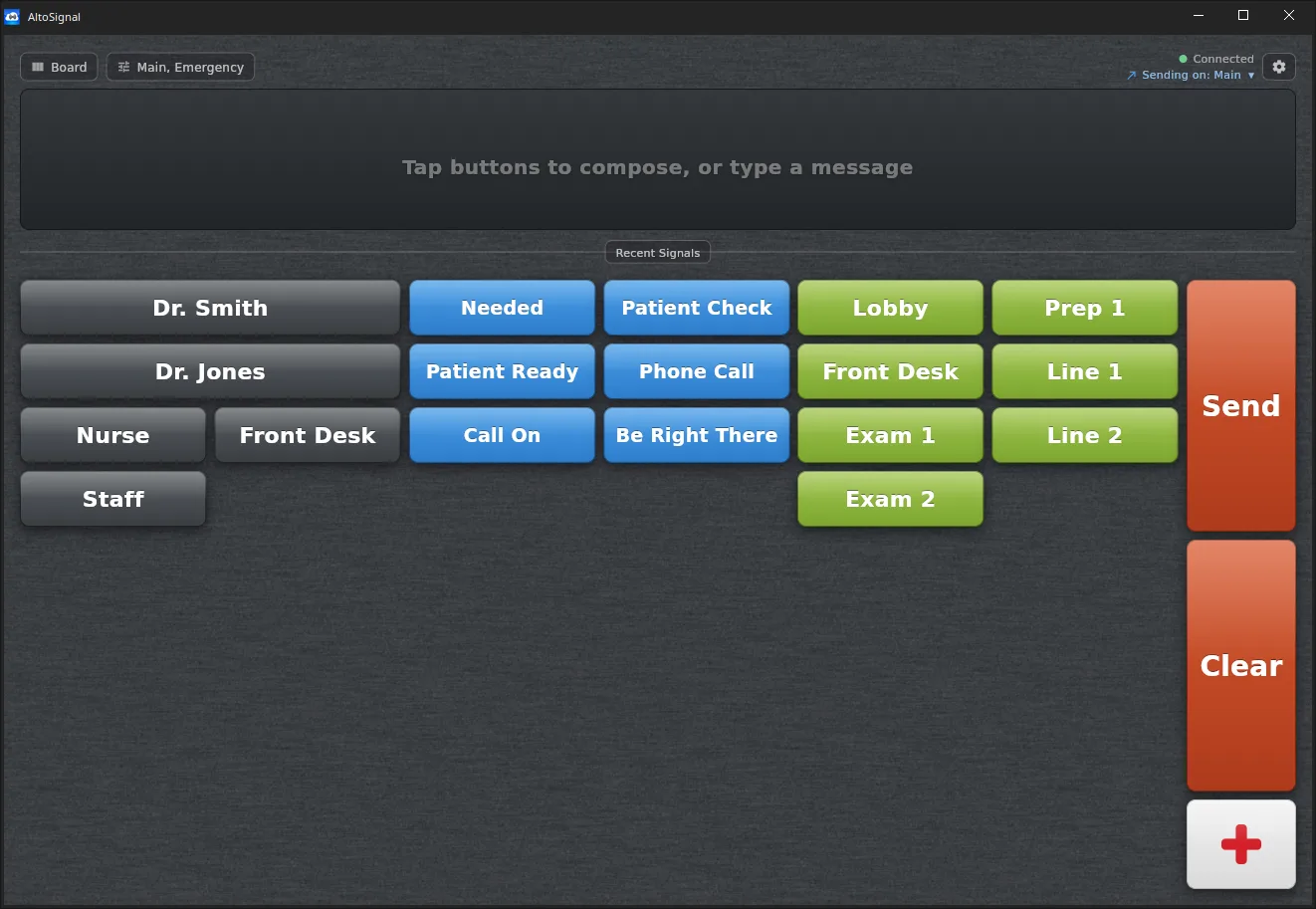
A working replica of the AltoSignal board, running right here in your browser. The front desk sends. The two operatory tablets receive. Tap Acknowledge on either tablet and watch the front desk hear back.

Board
Main, Emergency
Connected
Sending on: Main  ▾
Tap buttons to compose, or type a message
Front desk · Windows PC · sends
Board
Main, Emergency
Connected
Sending on: Main  ▾
Tap buttons to compose, or type a message
Exam 1 · Android tablet
Board
Main, Emergency
Connected
Sending on: Main  ▾
Tap buttons to compose, or type a message
Exam 2 · iPad

Everything works except the Board and Settings chips. Nothing you send here leaves this page.

Watch all guides →

A short walkthrough of a real dental practice using AltoSignal.

26 seconds, with sound. Front desk on the left, the Exam 1 tablet on the right. See it step by step

Three moments from a Tuesday
that shouldn’t require a shout.

019:14 AM

Mrs. Garcia just walked in for her 2pm, early. The receptionist needs the hygienist to know without leaving the front desk.

→ New patient arrival

0211:02 AM

Dr. Patel finished early in Op 3 and could take the next walk-in. Nobody else knows yet.

→ Open chair
033:38 PM

The autoclave just finished. Whoever is free needs to come grab the instruments. Not a group text.

→ Sterilization

Sound familiar? AltoSignal solves all of it in three taps.

Continue ↓

Three columns.
One message.

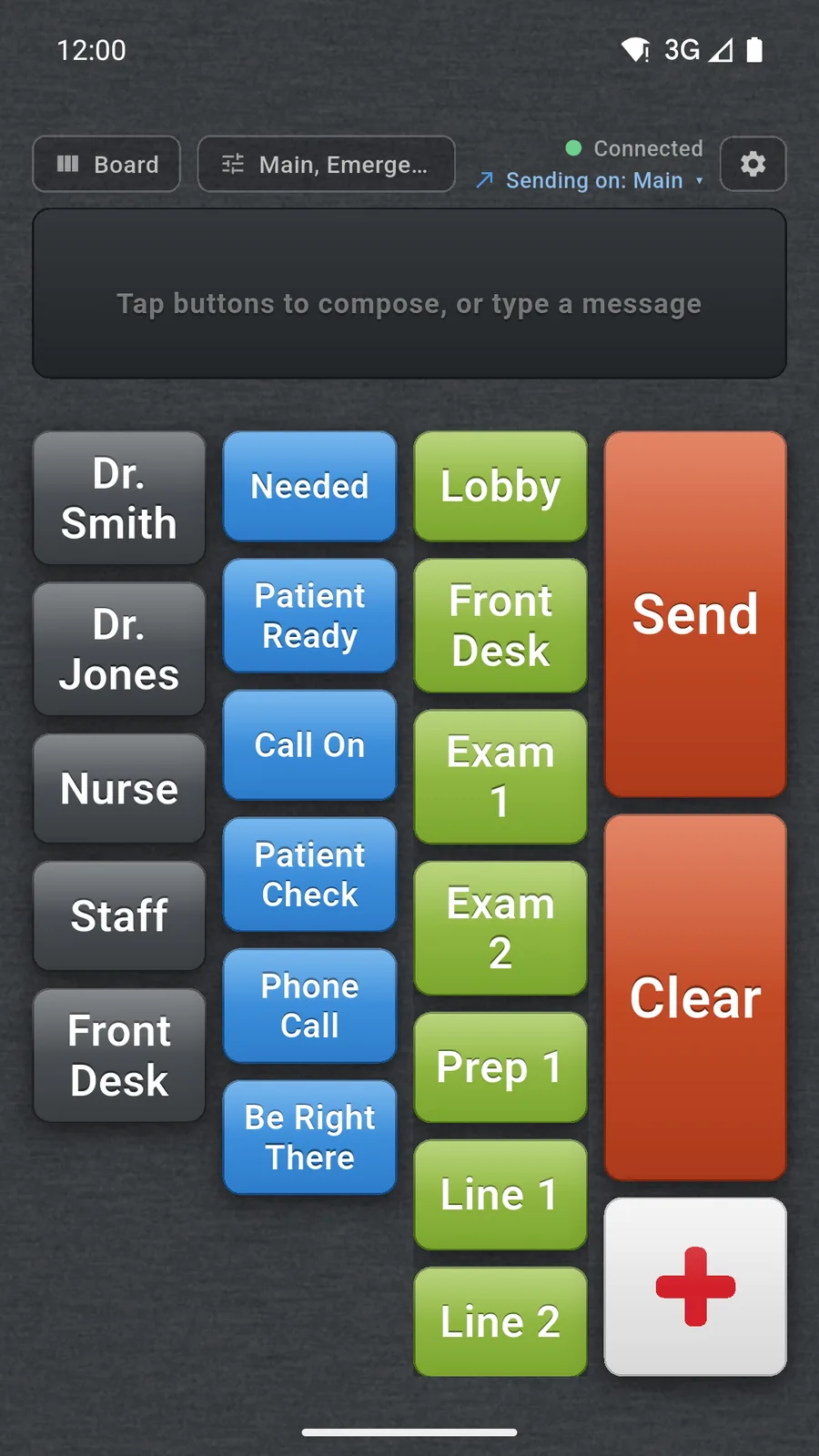
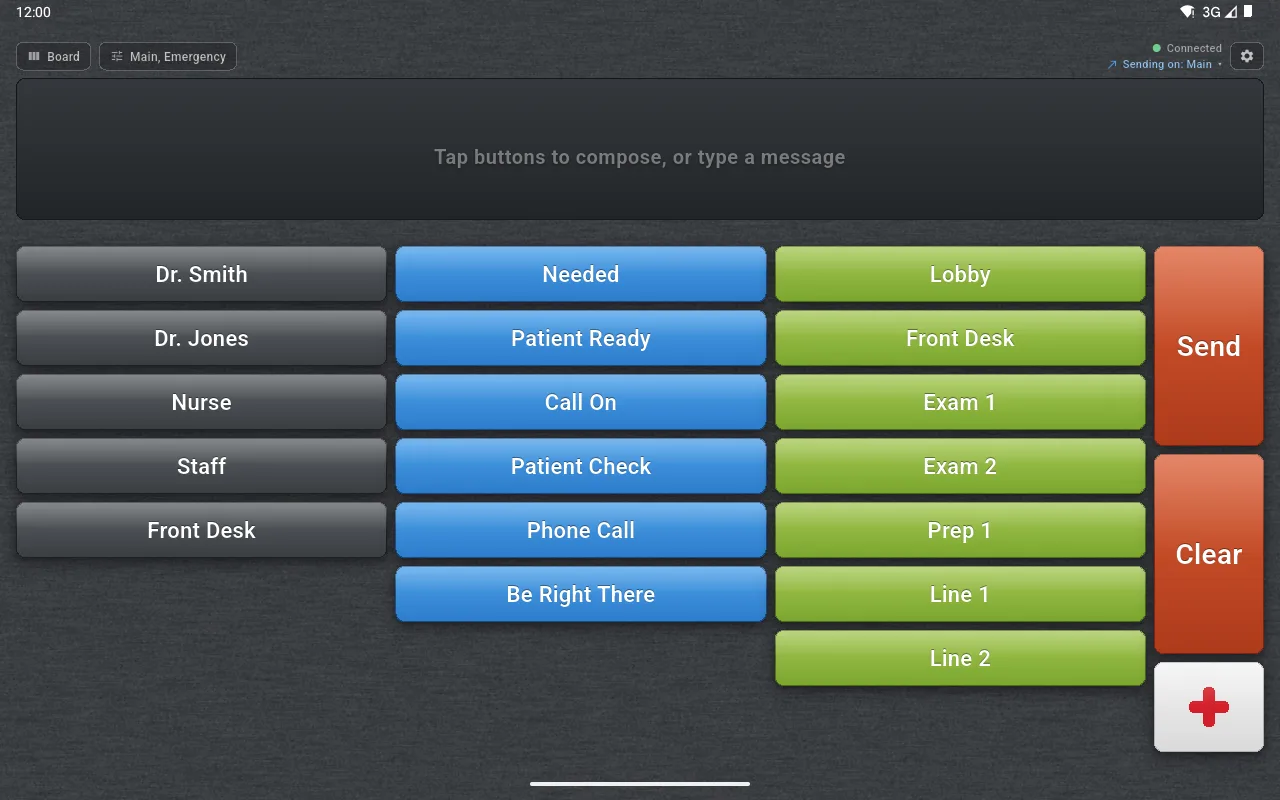
Every screen in your practice shows the same three columns of buttons. Tap one from each. The composed message appears on every other screen the moment you send it. That’s the whole product.

01WHO

Who is calling?

Dr. Chen
Dr. PatelTAP
Dr. Reeves
Maria, RDH
Jen, Asst.
Front Desk
02WHAT

What do they need?

needs assistantTAP
room ready
patient arrived
walk-in available
sterilization done
callback needed
03WHERE

Where is it?

Op 1
Op 2TAP
Op 3
Hygiene 1
Consult
Front Desk
BROADCAST · 11:42 AM
Composed message → every screen, instantly
Dr. Patel needs assistant in Op 2.
6 DEVICES · ACK 4

Three taps. Everyone knows. No shouting, no interrupting, no chasing.

Getting started

Three questions, and your office is set up.

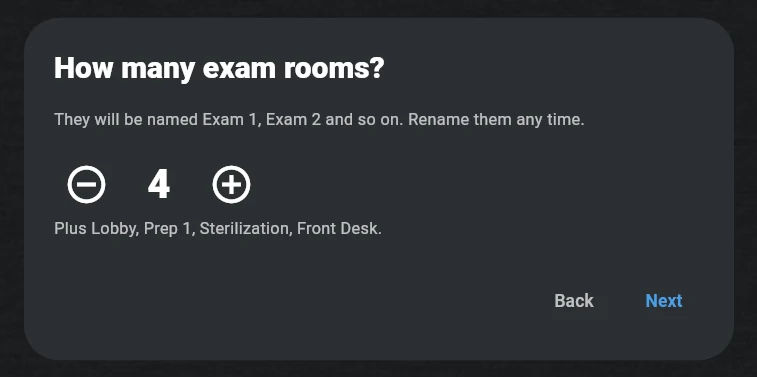
The first time the app opens on a new account, it asks what kind of office you are, how many rooms you have, and who gets paged. Then it builds the buttons, the rooms and a floor plan on every screen. Change anything later in Setup.
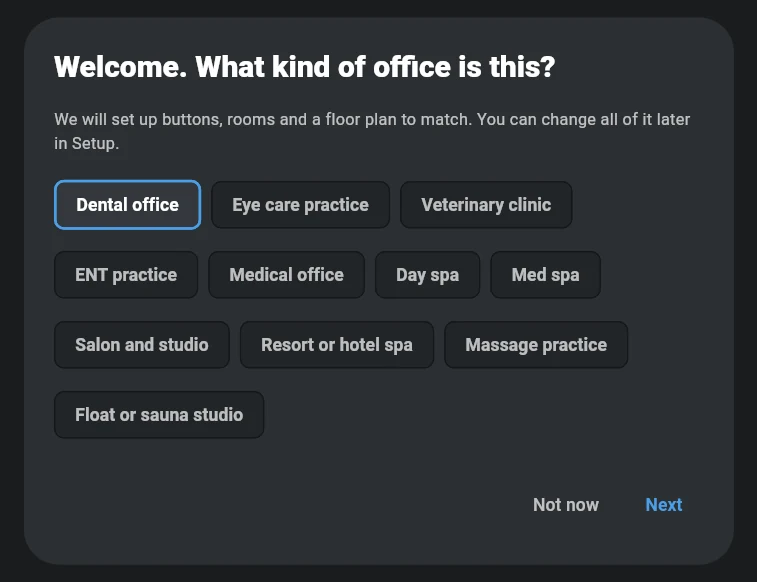
The first question, Welcome. What kind of office is this?, with buttons for Dental office, Eye care practice, Veterinary clinic, ENT practice, Medical office and six kinds of spa.
1. What kind of office?
The second question, How many exam rooms?, set to 4, with the note Plus Lobby, Prep 1, Sterilization, Front Desk.
2. How many rooms?
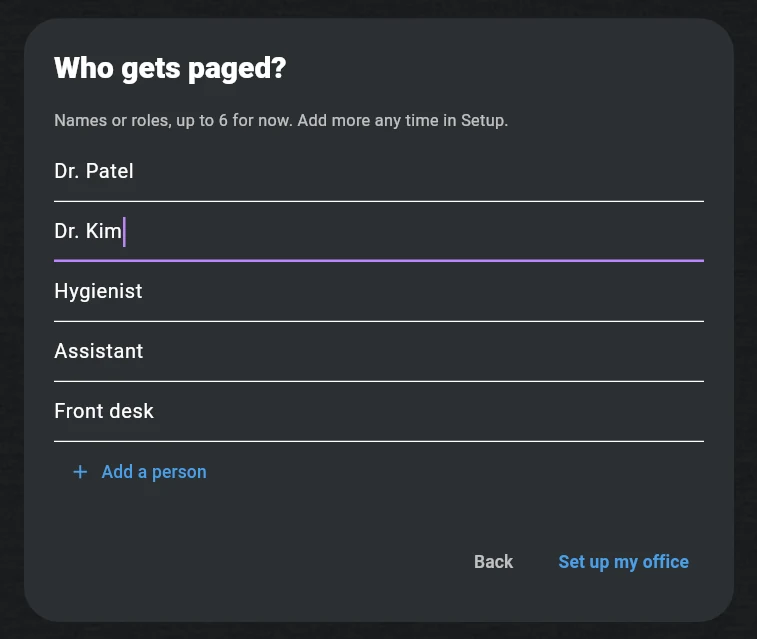
The third question, Who gets paged?, with Dr. Patel, Dr. Kim, Hygienist, Assistant and Front desk, and the button Set up my office.
3. Who gets paged?

The setup guide, step by step

In a dentist's
own words.

Altosignal is the best dental operatory communicator I have ever used! It's very easy to configure and highly customizable to the specific needs of any office. The developer of this app gives tremendous help and installation support! When I had questions they were quick to respond plus they even tried to implement my requests for future app improvements. I highly recommend that you consider this app to make your office run more efficiently.
Beasley Dentistry
Dr. R. Brad Beasley DMD · Athens, AL
Written for this page by Dr. Beasley, September 2026, and quoted with his permission.

Six things that
happen every day
in your office.

  • 01
    New patient arrival
    Reception alerts the right hygienist without leaving the front desk.
  • 02
    Room handoff
    Hygiene to exam, exam to checkout, the next person knows the moment a chair frees up.
  • 03
    Doctor calls for an assistant
    A tap from the chair, no walking, no buzzer that interrupts the patient next door.
  • 04
    Sterilization & instruments
    The autoclave finishes; whoever is free comes to grab the tray.
  • 05
    Front-to-back questions
    Quick check on a patient’s insurance or appointment without an intercom.
  • 06
    End-of-day close
    Last patient out, rooms turned, one shared checklist visible to everyone.

A native app on
nearly every platform.

You can use AltoSignal in your browser today, and native apps are available now on the App Store, Google Play, the Amazon Appstore, the Microsoft Store, macOS, and Linux. Tap a card for its screenshots; the 4.0 floor plan, list, cards, timers and history follow the classic board in each gallery. The apps also hand signals straight to each other across your office network, so an outage does not stop the practice.

All apps and downloads · Setup guide

Amazon Fire
Fire tablets
Amazon Fire app screenshot
Android Phone
Android
Android Phone app screenshot
Android Tablet
Android
Android Tablet app screenshot
iPhone
iOS
iPhone app screenshot
iPad
iPadOS
iPad app screenshot
Windows
Desktop
Windows app screenshot
macOS
Desktop
macOS app screenshot
Linux
Desktop
Linux app screenshot
Browser
Use it in your browser today
Browser app screenshot
MIX AND MATCH

Run any mix of devices,
not 18 of the same one.

Every platform talks to every other platform, so your office is never locked to a single brand or store. Put Windows PCs at the front desk, iPhones and iPads in the doctors' pockets, and Android tablets in the operatories, all on one account, one board, and the same channels. Use the devices you already own, and add whatever fits each room.

Front deskWindows PC
OperatoriesAndroid tablets
DoctorsiPhone + iPad
SterilizationAny spare screen, in the browser

Simple on top.
Serious underneath.

  • 01
    Who, what, where
    Send a clear message in one tap. Pick who you need, what is going on, and where. The screen shows it in big text, like “Dr, patient ready, Exam 1.” Most people learn it in a few minutes.
  • 02
    Unlimited channels
    Make a separate channel for each team or topic, like radio stations. The right people get the right alerts, and no one has to wade through messages meant for someone else.
  • 03
    Built-in emergency channel
    A priority channel is ready from day one. Urgent alerts jump to the front and stand out on every screen. Rename the buttons to fit your work, like “Call 911” or “Hazard.”
  • 04
    History and read receipts
    Every message is saved with the time it went out and who has seen it. Anything no one has confirmed stays flagged, so nothing slips through.
  • 05
    A native app on nearly every platform
    Native apps for iPhone, iPad, Android phones and tablets, Amazon Fire, Windows, Mac, and Linux, plus a browser version for any computer. Signals travel across your own office network and through the cloud at the same time, so they land in a moment and keep working if the connection drops.
  • 06
    Your office as a floor plan
    New in 4.0. Your rooms drawn as a plan, with every patient and staff member in them. Take a number at the front desk, drag the patient into an operatory, and watch the clock on their pill. States can carry a timer that turns red when it runs out, and every patient and room keeps the day as a history. Locate finds anyone in one tap.
  • 07
    Five views of the same board
    Classic, Floor plan, List, History and Cards, one tap apart at the top of the main screen, remembered per device. The List view runs twelve rooms on a seven-inch tablet with no dragging, and Cards shows every room’s state at a glance.
  • 08
    Ready for big teams
    As many screens as you need on one login, unlimited channels to route by doctor, room or location, an Emergency channel that reaches every screen, and a board view for a back-office TV. User logins with roles and single sign-on, for larger organisations and DSOs, are planned next.

Talk to one room.
Or the whole office.

A channel decides exactly who hears a message, a single device or a group. Main and Emergency always reach every screen; every other channel you set up to match how your office actually moves. It scales the same way from a single-dentist office to a busy multi-doctor practice, and up to dental schools and enterprise settings with many rooms and teams.

MAINEMERGENCYHYGIENEFRONT DESKOP 1OP 2HYGIENESTERIDR. PHONE

Main and Emergency reach every screen. A channel you make reaches only the screens that chose it.

Always on
MainAll devices

The everyday channel. Broadcasts to every device in the office, always on by default.

EmergencyAll devices

Priority alerts to every device, ready out of the box. Cuts through everything else when seconds matter.

Route it anywhere
  • Front Desk→Op 1Reception straight to one operatory, nobody else is interrupted.
  • Hygiene→Front DeskLet the desk know a patient is ready to check out.
  • Doctor→AssistantsCall whoever is free, without paging the whole office.
  • Sterilization→Back officeA tray is ready, tell just the people who need it.

Create as many channels as you need, the possibilities are up to your workflow.

Already have a paging system
or call lights?

Most practices come to AltoSignal from wired call boxes, light paging, or an older app. See exactly how it compares to the system you have today, and what you gain by switching.

New to this? Start with how dental paging systems work.

The internet can go out.
The office keeps signaling.

Every signal now travels two ways at the same time: straight across your office network, and through the cloud. This is not a backup that switches on when something breaks. Both paths carry every signal, always.

Devices find each other on their own. There is no address to set and no router to configure.

CLOUDVIA THE CLOUDDIRECT, ON THE OFFICE NETWORKFRONT DESKOP 1OP 2
  • 01
    Nothing to install in the office.
    It runs on the tablets and phones your team already knows how to use. No server in a back closet, nothing loaded onto clinic computers, and no IT project to schedule.
  • 02
    One account covers every location.
    A practice with two or three offices runs all of them from the same account, with one place to manage staff, rooms, and channels.
  • 03
    Signals travel locally and through the cloud at once.
    On typical office networks, a signal crossing the operatory takes the short trip instead of the long one out to a data center and back. If the connection drops, signaling keeps working and there is nothing for staff to do.
  • 04
    Built for the person who runs the network.
    The IT manager of a 26-location eye care group came to us after the paging system he had inherited flooded the office network with multicast traffic and knocked out the phones he had just installed. He moved it to its own VLAN and the traffic still leaked. The vendor told him the software was still on .NET 4 and broadcast to everything.
    The local path is a small discovery beacon and direct one-to-one connections on one port, encrypted with a key that belongs to your account. And if your network policy wants none of it, it is one switch: off for a single screen, or off for the whole account so no screen can turn it back on. Pages still arrive over the internet either way.
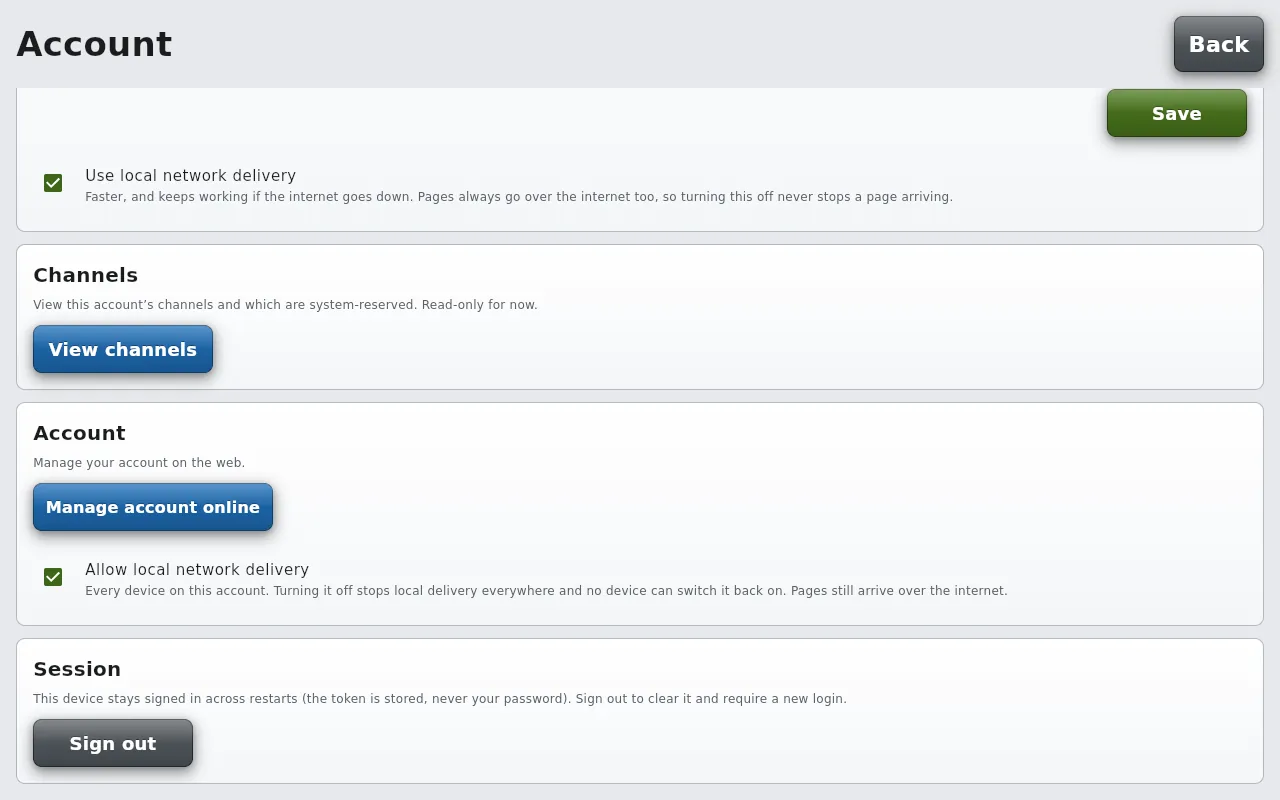
    The Account screen of the desktop app: under This device, a checked box Use local network delivery; under Account, a checked box Allow local network delivery, every device on this account, turning it off stops local delivery everywhere and no device can switch it back on.
    The two switches on the Account screen: per screen under This device, whole account under Account.
    One switch.
    The switches, and how the path works
  • During an outage your team keeps signaling. Changing button labels or adding a channel waits until the connection is back. That is the honest trade: what clinical staff use every minute keeps working, and what an administrator touches a few times a year waits.

    How local delivery works

What it takes to
get going.

There is no wiring, no call box, and no installer visit. Most of the work is deciding how many screens you want and where they hang.

What you will need
  • +A tablet or screen for each operatory
  • +A wall mount or stand for each one
  • +Power within reach of every mount
  • +The computer already at your front desk

Nothing here is proprietary. Any tablet or computer from the last few years will do.

  • 01
    Count the screens.
    One wherever a signal needs to be seen: every operatory, the front desk, sterilization, the lab. Four operatories plus a front desk and sterilization is six screens. Doctors and assistants can also keep it in a pocket.
  • 02
    Pick the devices.
    They do not have to match. An older iPad in one room, an Android or Fire tablet in the next, and the front desk on the computer already sitting there. Add screens one at a time as you go.
  • 03
    Mount them and find power.
    Operatory screens want a wall mount or a stand where the chair can see them, and an outlet within reach, because they stay on all day. A tablet mount and a longer charging cable is usually the whole hardware list.
  • 04
    Check the Wi-Fi in every room.
    Operatories are the usual weak spot, especially behind lead-lined walls. AltoSignal runs in the cloud, so every room you want covered needs a live connection.
  • 05
    Build the board, then sign in.
    Add your doctor names, your rooms, and the phrases your office actually says. Sign in on each screen and it picks up the same board. Do one dry run before the first patient.
  • Watch the setup guides and see each step on a real screen.

Priced per device.
Cheaper as you grow.

$25 a month covers your first 5 devices. Every device after that costs less: $4.00, then $3.00, down to $1.25. Each band prices only the devices inside it, so adding a device never changes what you pay for the ones you have. Pay yearly and you get two months free.

Devices 1–5$25/month base
Devices 6–10$4.00 / device / mo
Devices 11–20$3.00 / device / mo
Devices 21–100$2.00 / device / mo
Devices 101–200$1.50 / device / mo
Devices 201–500$1.25 / device / mo
501+ devicesContact sales
  • +30-day free trial, no credit card
  • +Unlimited team logins; you pay for screens, not people
  • +Add or remove devices any time; billing adjusts
  • +Cancel anytime, month to month
  • +Two months free when you pay yearly
  • +Setup in under ten minutes
Every band, worked examples and the FAQ →
ONE PLAN
WHAT WOULD YOUR PRACTICE PAY?
$42.50/ month
$510 billed yearly · $102 less than monthly
First 5 devices · $5.00 each$25
Devices 6–10 · $4.00 each$20
Devices 11–12 · $3.00 each$6
Per month$51
Start free trial
30 days free. No card. Cancel anytime.
More than 500 devices? Talk to us

What dentists usually
ask first.

Under ten minutes. The first time the app opens on a new account, it asks what kind of office you are, how many rooms you have, and who gets paged, then sets up the buttons, rooms and a floor plan for you. Rename anything later in Setup. No installer, no IT call.
Native apps for iPhone, iPad, Android phones and tablets, Amazon Fire, Windows, Mac, and Linux, plus a browser version for any computer.
Signals travel two ways at once: across your own office network, and through the cloud. If the connection drops, devices running the app on that network keep signaling each other, with nothing for staff to switch on. What waits for the connection is the administrative side, changing button labels, adding a channel, or reaching a second location. The browser version does not take part in local delivery, so a browser-only screen receives through the cloud.
Channels decide who hears a message, a single device or a group. Main and Emergency always reach every device. You can add your own, like a Front Desk channel that goes straight to one operatory, without interrupting the rest of the office.
Yes. A built-in Emergency channel is ready from day one. It reaches every device with priority and stands out on every screen. You can rename the buttons to fit your office, like Call 911 or Hazard.
Yes. Every message is saved with the time it went out and who acknowledged it. Anything no one has confirmed stays flagged, so nothing quietly gets missed.
No. It works for a single-dentist office just as well as a busy multi-doctor practice, and it scales up to dental schools and enterprise settings with many rooms and teams.
Yes. Most practices come to AltoSignal from wired call boxes, light paging, or an older app. See how it compares to Porter, Visicom, Cyber Intercom, BlueNote, Kelkom, Comlite, and Venga in the compare section.
AltoSignal is priced per device, and the rate drops as you add devices. $25 a month covers your first 5 devices; devices 6–10 are $4 each, 11–20 are $3, 21–100 are $2, 101–200 are $1.50, and 201–500 are $1.25. Each band prices only the devices inside it, so a 12-device practice pays $51 a month. Pay yearly and you get two months free. Staff seats are unlimited: you pay for the screens that receive signals, not for people. Every plan starts with a 30-day free trial, no credit card. Past 500 devices, email sales@altosignal.com.
Yes. AltoSignal runs in any browser and as native apps. If your front desk can load Google, AltoSignal will work. We don’t need a special network or any new hardware.
When the device comes back online, it picks up the most recent broadcast and any acknowledgements it missed. Nothing gets lost in the gap. If it was the office internet that dropped rather than the device, the devices still on your office network keep signaling each other in the meantime.
Yes, per screen or for the whole practice, and the reason the switch exists is a story we heard from the IT manager of a 26-location eye care group. The paging system he had inherited flooded the office network with multicast traffic and knocked out the VoIP phones he had just installed; he moved it to its own VLAN and the traffic still leaked. The local path is a small discovery beacon and direct encrypted connections on one port, so there is nothing to flood. When a network policy wants none of it, two switches on the Account screen turn it off: for one screen, or for every device on the account. Pages still arrive over the internet either way.
AltoSignal does not store patient names, charts, or PHI. The buttons say “Dr. Patel needs assistant in Op 2,” not patient information. We sign a BAA on request.
Yes. Doctor names, role names, room labels, and the actions are all editable. Most practices set this up once on day one and rarely touch it again.
You can group screens by location and have separate broadcasts per suite, or one shared layer across both. Your call.
New in 4.0, the Floor plan view draws your rooms as a plan and puts every patient and staff member in them: take a number at the front desk, drag the patient into an operatory, and watch their clock and state. It is one of five views on the main screen, chosen per device, so a screen that prefers the classic buttons keeps them.
No. A patient is a number, with an optional short label such as initials, the rooms they were in and the times. No name, chart or reason for the visit is entered anywhere, and New day clears every patient on the account.
Anytime. Month-to-month, no contract. Cancel from settings, no phone call required.

Short videos, real setup.

See exactly how to set up AltoSignal and use it in the operatory. Each clip is under a minute and shows one thing, so anyone on the team can learn the part they need.

Browse the guides →

Want to read it instead? Follow one morning in a practice, front desk to operatory, step by step, or see what is new in 4.0: the floor plan, take a number, timers and history.

Adding your team? Give each person their own login, step by step.
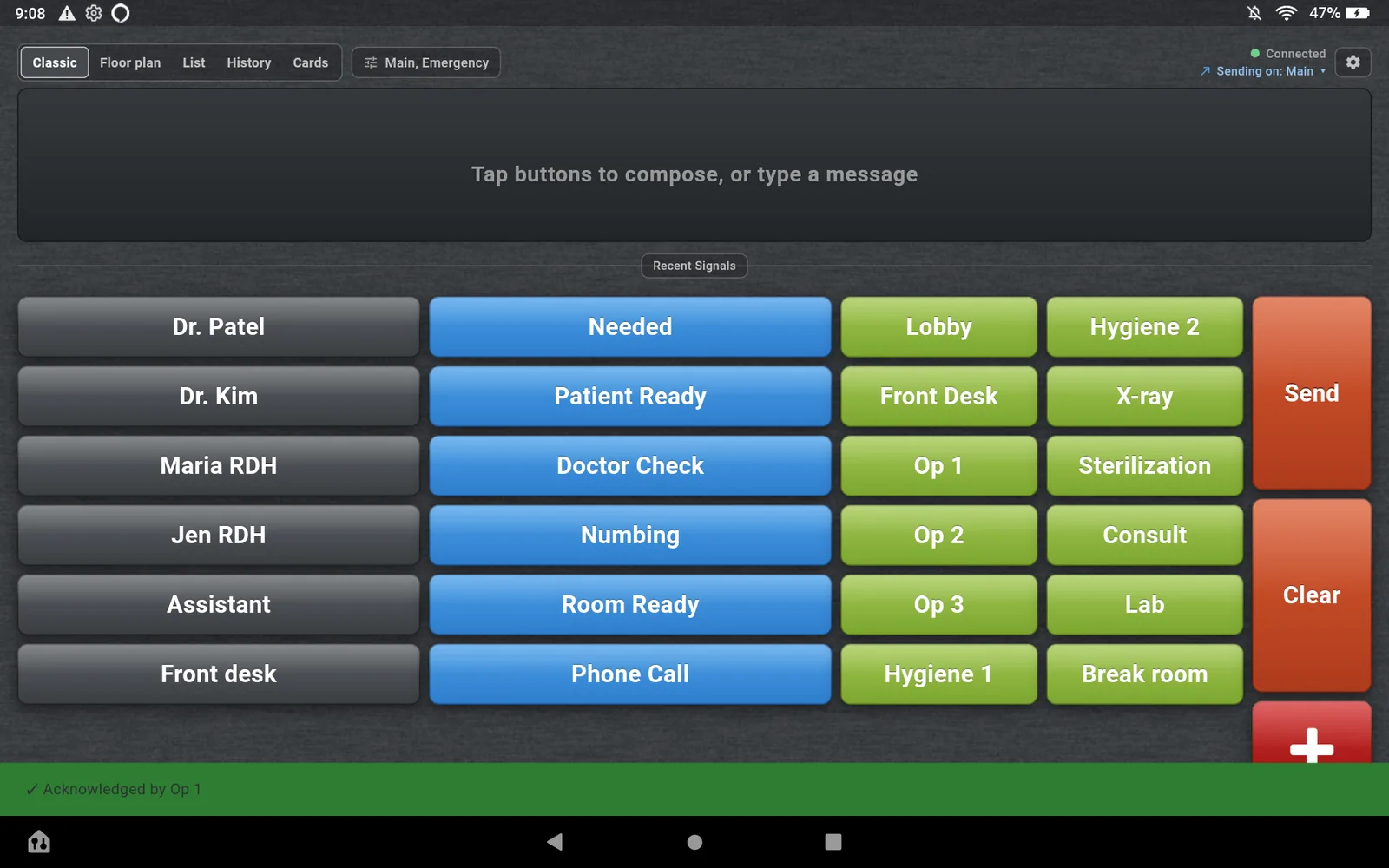
Guide 01, send a page in three taps

Try AltoSignal free
for 30 days.

No credit card. Setup in under ten minutes. Cancel anytime, no phone call.

Start 30-day free trial

Request a demo

Or email us first, sales@altosignal.com