Guides
Watch exactly how to set up AltoSignal and use it in the operatory. Each clip is under a minute and shows one thing, so anyone on the team can learn the part they need.
The walkthrough is below. Eight of the nine short topic clips are recorded.
Give each person their own login, with a role that fits the job.
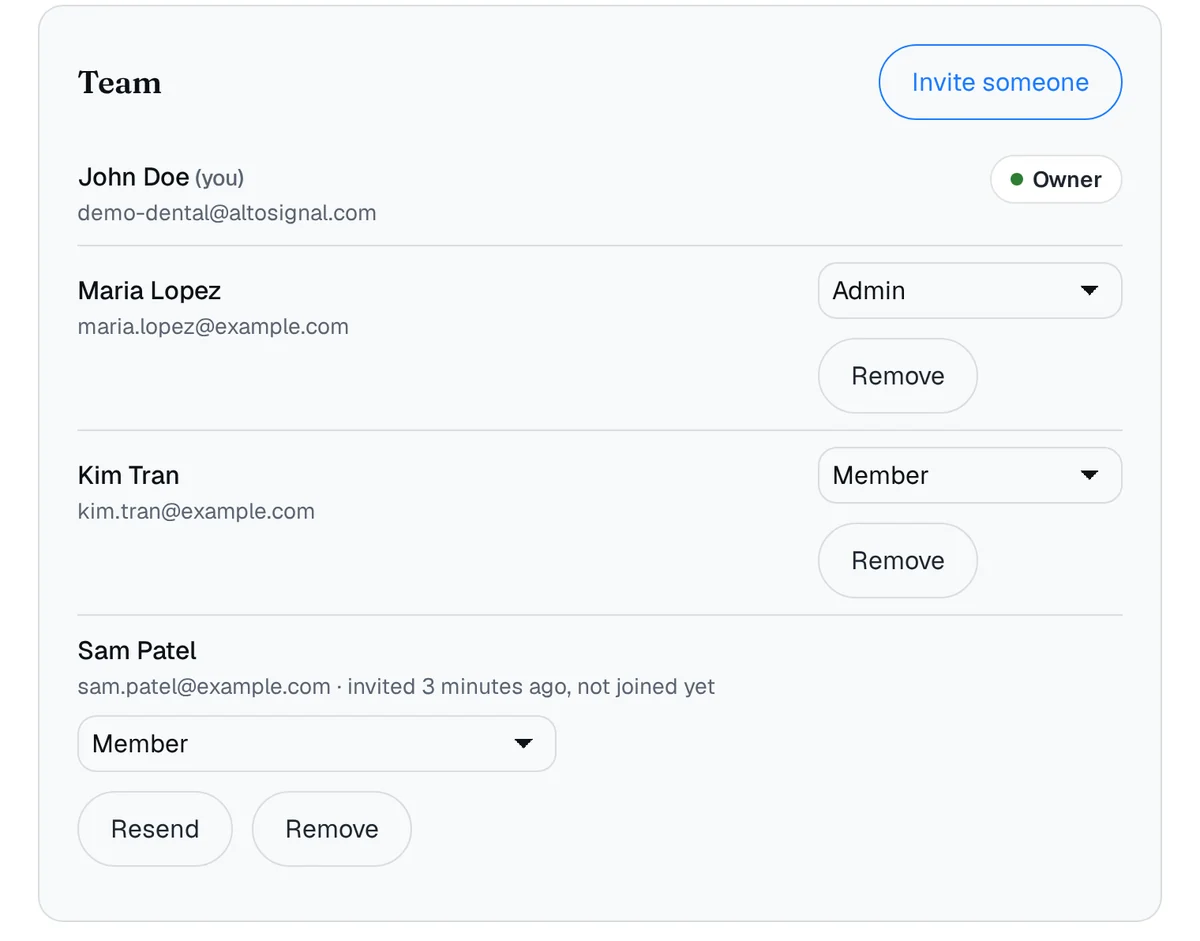
Invite people by e-mail from your account page and choose Member or Admin. Every page shows who sent it, and your buttons, rooms and channels stay the way you built them.
Read the guide →From a blank board to a working office in a few minutes.
One wherever a signal needs to be seen: every operatory, the front desk, sterilization, the lab. Four operatories plus a front desk and sterilization is six screens.
They do not have to match. An older iPad in one room, an Android or Fire tablet in the next, the front desk on the computer already sitting there.
Operatory screens want a wall mount or stand where the chair can see them, and an outlet within reach, because they stay on all day.
Operatories are the usual weak spot. AltoSignal runs in the cloud, so every room you want covered needs a live connection.
Your doctor names, your rooms, and the phrases your office says. Sign in on each screen and it picks up the same board. Then do one dry run.
Nothing here is proprietary. Any tablet or computer from the last few years will do, and you can add screens one at a time.
Add the rooms, staff names, and phrases your office actually uses. Button changes apply to every device in the practice.
Open AltoSignal on a front-desk iMac, an operatory iPad, or a phone in back, and join the same board.
Add a channel from the Account screen. Main and Emergency are system channels and always reach every device.
The everyday moments AltoSignal is built for.
Pick who, what, and where, then send. The message lands on every screen in big text.
Tap to confirm on the receiving screen, so the sender knows it was seen.
Hit the red cross for the Emergency screen, then one tap sends. It takes over every screen at once.
Send on a room channel and only the screens listening to it light up. Every other board stays quiet.
Page the next room as the patient moves through, so whoever is up next knows the chair is ready.
The autoclave finishes. Page it by name so whoever grabs the tray sees it, with nothing said out loud.
Your rooms drawn as a plan, take a number for patients, timers on states, and a history for every patient and room. Each clip is the front desk's desktop app on the left and the Op 1 tablet on the right, in real time, on a demo dental office. Read the full tour with screenshots.
Next number puts the patient in the Lobby. Drag them and Dr. Patel into Op 1, and the tablet's cards follow.
Hygiene 1 sends Doctor Check. The desk answers Be There Soon, and one tap on the tablet acknowledges it everywhere.
Numbing counts down eight minutes. When it reaches zero the patient turns red on the plan and on the list, on every screen.
The assistant pages Room Ready for Op 3. The desk sets the room to Ready and every card changes at once.
Locate, Dr. Patel: the icon glows on the plan and the bar says Op 1, on the desk and on the tablet.
The red cross on the tablet sends Medical Emergency. Every screen turns red until the desk acknowledges.
Set it up in under ten minutes on the screens you already have. Cancel anytime, no phone call.
Start 30-day free trialRunning a spa or wellness studio? The same guides in spa language: turning a treatment room between guests, and which tablets to put on the wall.
